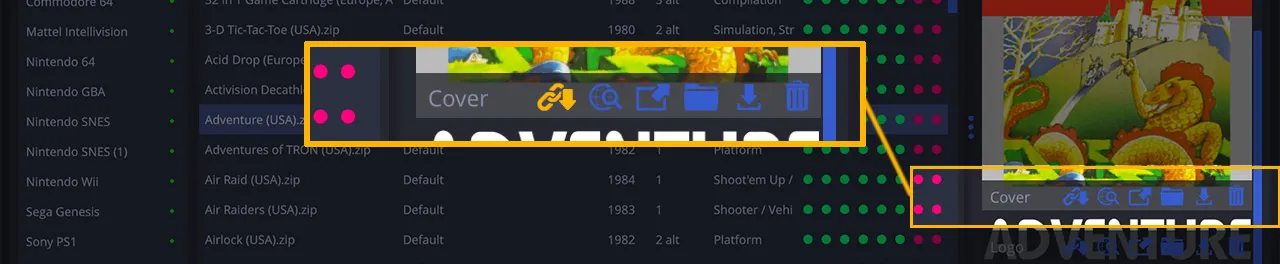
Adding media to the database
Media can be retrieved in bulk: see the Presentation of the interface section of the “DB Update tab explained” page.
You may however want to retrieve this information for a single game. Several options are then available.
1. Automatically
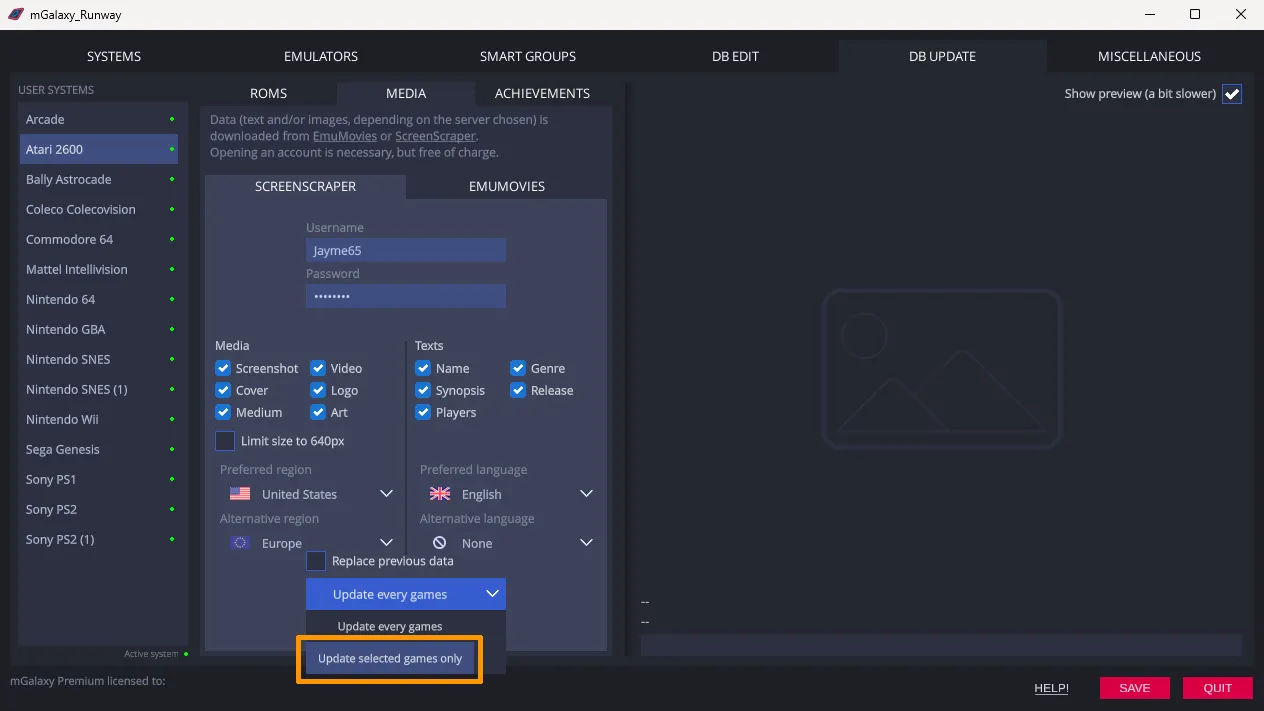
Section titled “1. Automatically”This is again done through the “DB Update” tab, but restricting the update to the game(s) currently selected in the “DB Edit” tab (“Update selected games only” option).
2. Manually
Section titled “2. Manually”a. The media is already on your drive
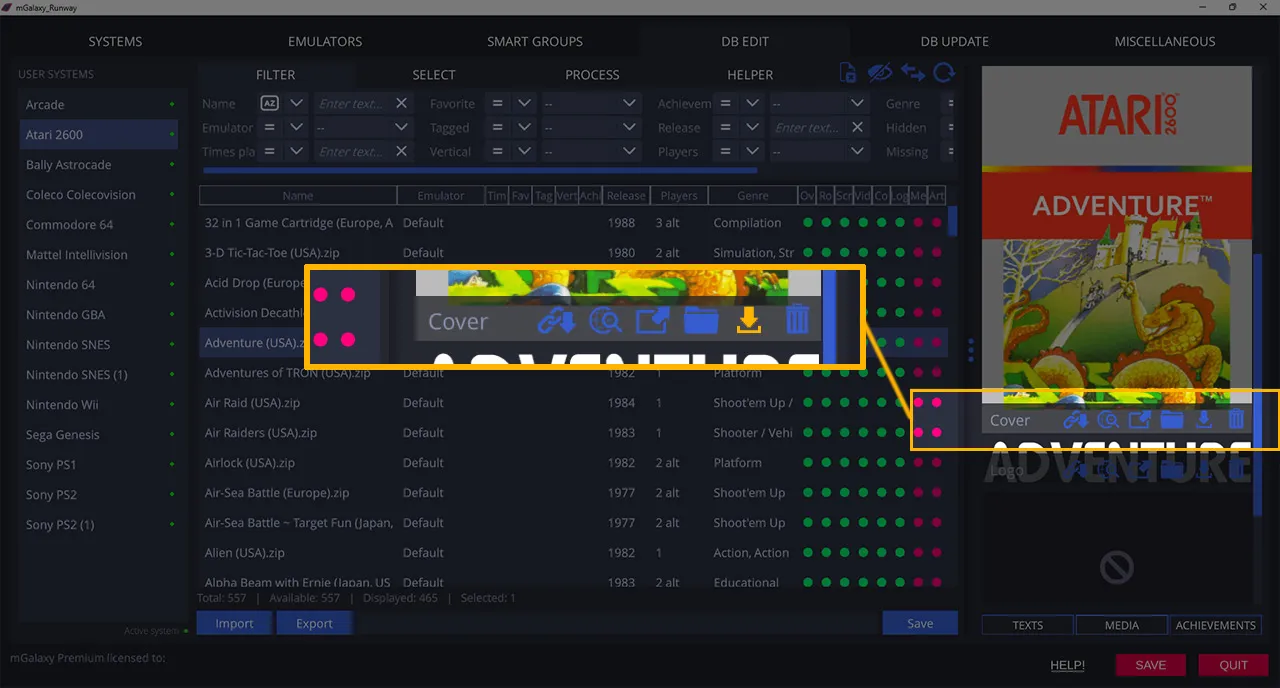
Section titled “a. The media is already on your drive”In the “DB Edit” tab, select the game then, depending on the type of media you want (screenshot, logo, box…), click the corresponding “Pick” button.
b. You want to search the Internet for this game
Section titled “b. You want to search the Internet for this game”In the “DB Edit” tab, select the game then, depending on the type of media you want (screenshot, logo, box…), click the “Search on the Internet” button.
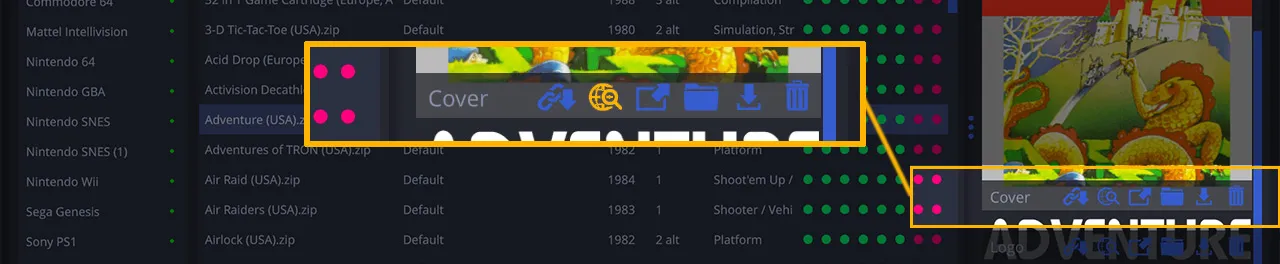
Your browser opens automatically and runs the search for this game, on this system, for this type of media.
Once you’ve found what you need, right-click the image and select “Copy image address”.
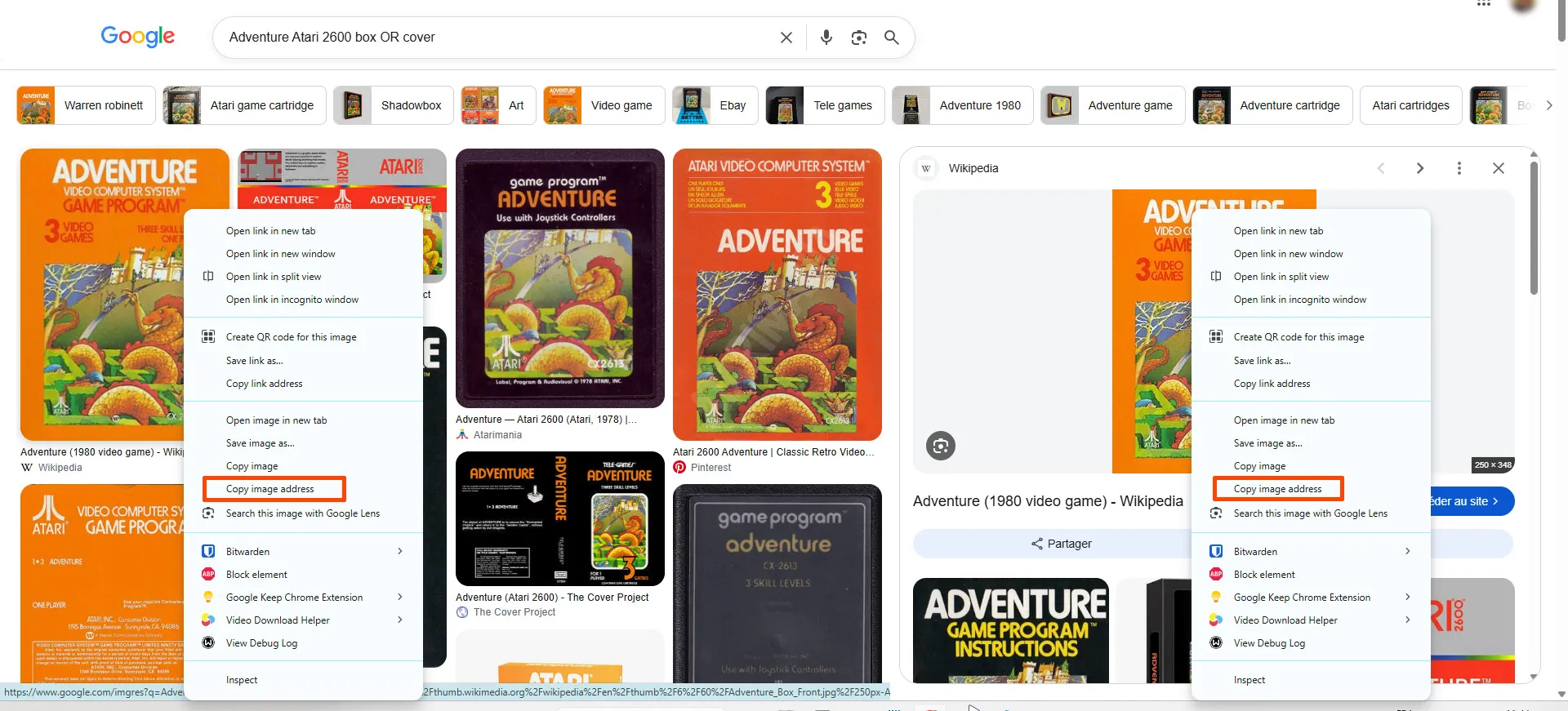
Go back to the mGalaxy_Runway window and this time click the “Paste image URL” button.